Having a Google Business Profile (GBP) is essential for any business that wants to show up online. A GBP allows Google to display your business in knowledge panels, local packs in search results, and on Google Maps, which all help increase your visibility online.
When setting up your business profile, you will need to enter some basic business information before you’ll need to verify that you’re a real business. Once verified, your business will be visible on Google search. From there you will also be able to add more details about your business to optimise your GBP.
If you don’t currently have a Google Business Profile, here is a step by step guide to getting setup so you can be found online.
Already got a Google Business Profile? View our guide on optimising your GBP.
1. Visit Google Business Profile to start
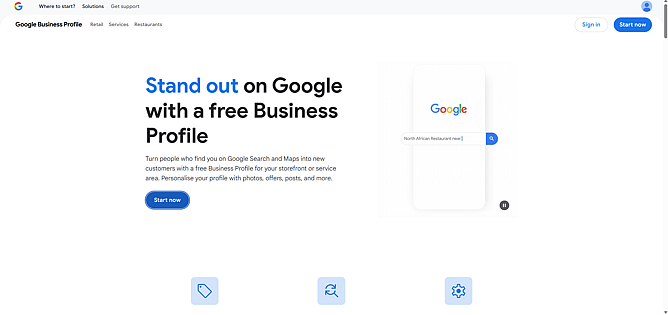
You will need to head to https://business.google.com/en-all/business-profile/ and hit start now to begin creating your Google Business Profile.
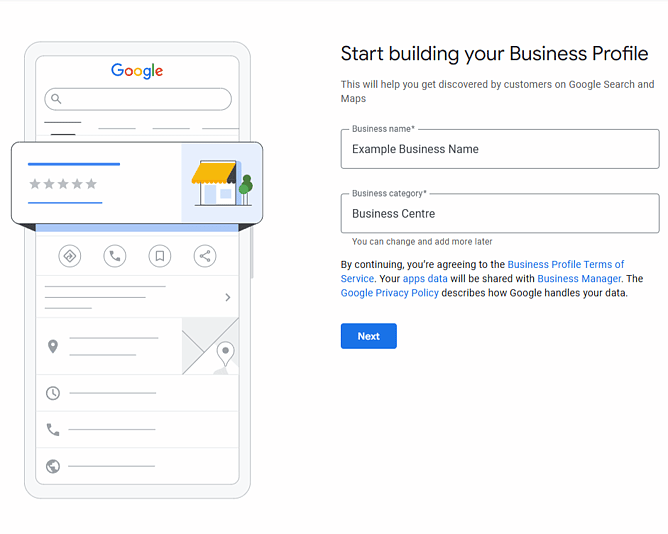
2. Start building your Business Profile
First, add your businesses full name especially if it includes industry keywords. E.g. Robbie’s Fast Food Company
Second, select your main category for your business. This category will be what you show up as in search results. If your business fits into other categories you can add these later. E.g. Fast food restaurant
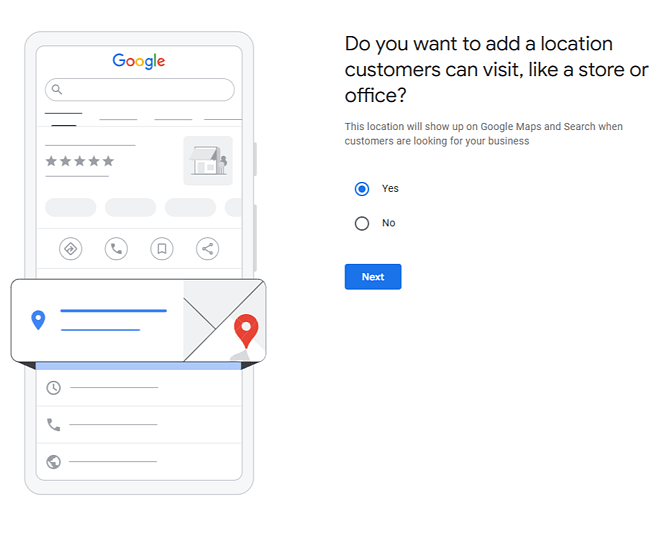
3. Do you want to add a location customers can visit, like a store or office?
Select whether you want people to visit your place of business or not. Select Yes even if it is by invitation only.
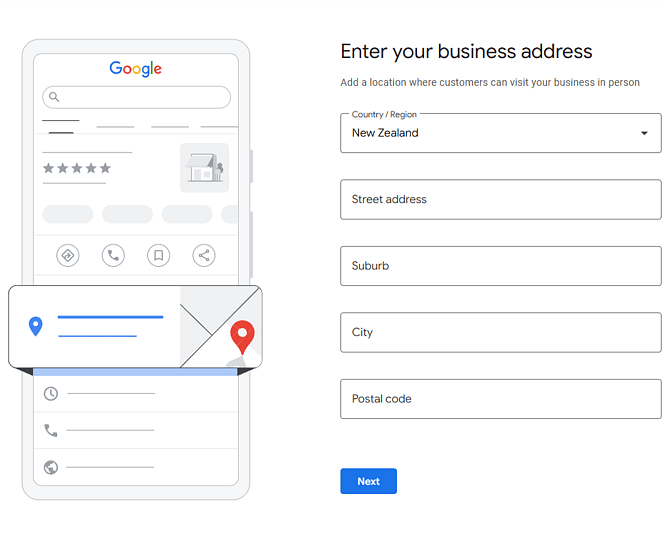
4. Enter your business address
Enter your business address so Google knows where to display your business on Google Maps. It also allows people to get directions to your business location when you show up on Google search results.
Note: This address can be made hidden at a later stage, if required.
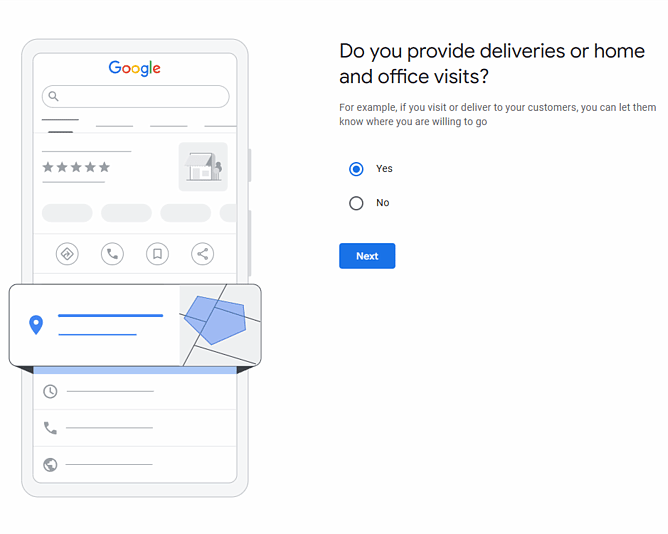
5. Do you provide deliveries or home and office visits?
Based on your business, select whether you provide deliveries or home and office visits.
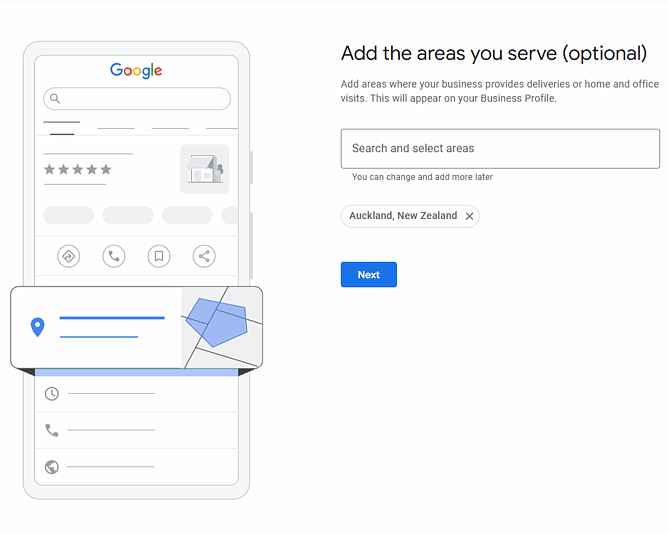
6. Add the areas you serve (optional)
If you are a mobile business you will want to select all the areas within your service area. Having more specific areas like Orewa rather than broad areas like Auckland or New Zealand are more beneficial.
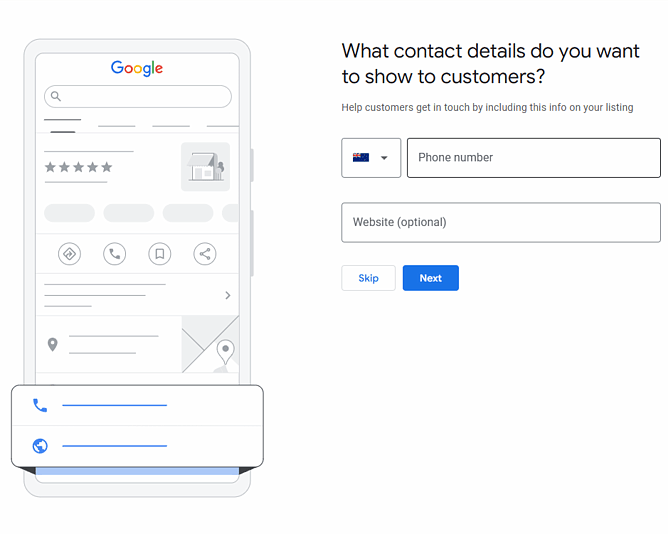
7. What contact details do you want to show to customers?
Add your business’ phone number as this will show up in the local packs and knowledge panels, allowing people to call you directly from the search results page. Messaging can also be done via this phone number on WhatsApp.
If you have a website, you will want to add this here. It will also show up on the local packs and give your customers an easy way to access your website. Don’t have a website? Contact us to get a website package.
Note: These may also be used for verification purposes.
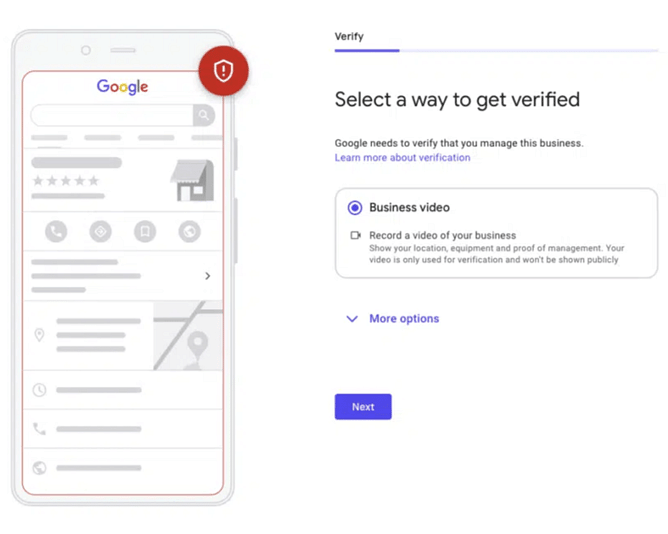
8. Select a way to get verified
You will be given some options to verify your business. Verification methods are automatically determined by Google and can’t be changed. In some cases, you may need to verify your business with more than one method.
Phone, email, video, live video call and postcard by mail are all possible options.
To verify your business, try the available options for your Business Profile. The verification options depend on your business type, public info, region, or business hours.
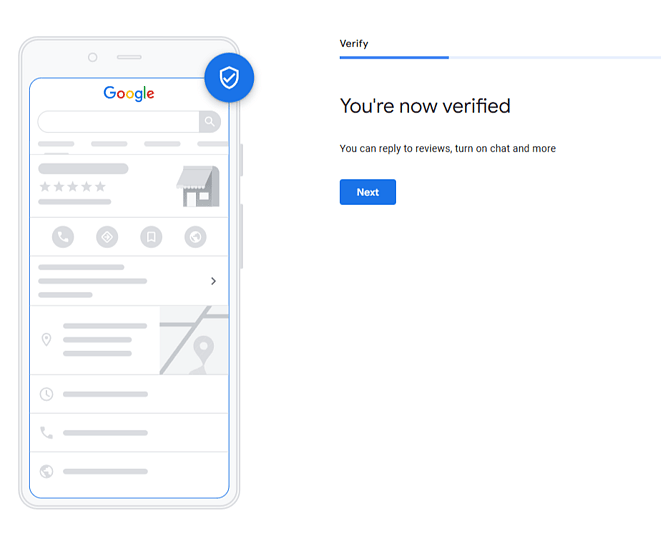
9. You're now verified
Once verified, continue with this guide to add more details to your GBP.
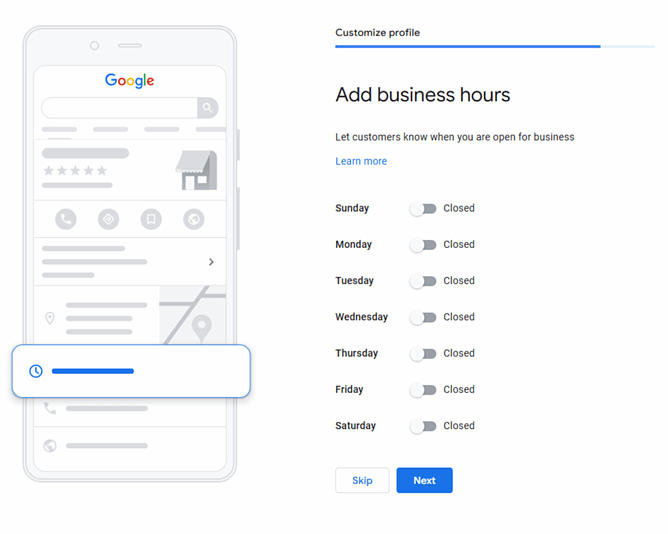
10. Add business hours
Add your standard business hours to show customers if you are open or closed. Your business hours will be displayed on your knowledge panel in Google search results, and can be used to help searchers see if your business is open or closed in local packs.
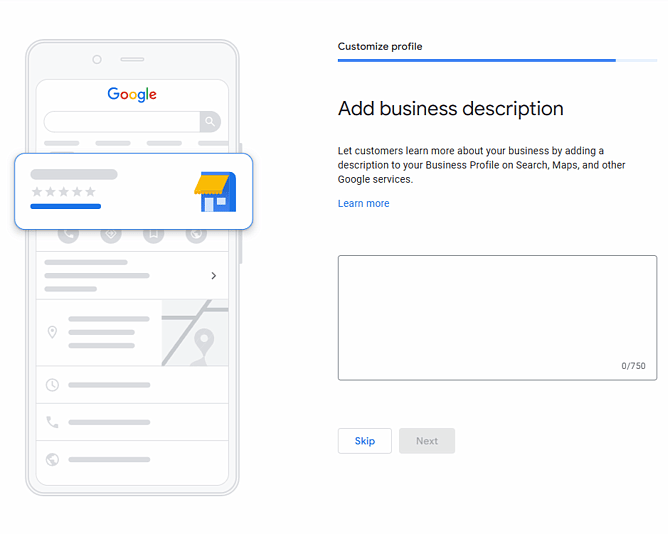
11. Add business description
In your business description you should include your business name, location / service area, what you do, who you help, and a call to action. If possible throughout your description add social proof (testimonials, stats etc.), a short history of your business, and your target keywords.
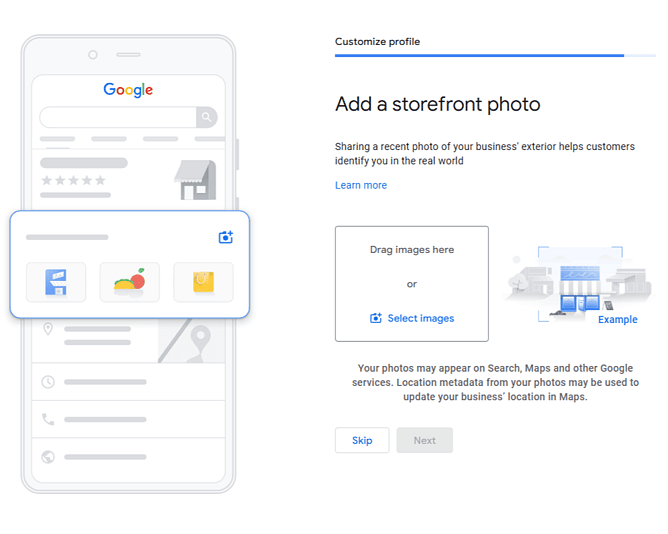
12. Add storefront photo
Adding a storefront photo can increase your interactions from searchers. It is also a great way to help people see your business location so that when they visit in person they will have a familiarity with your business.
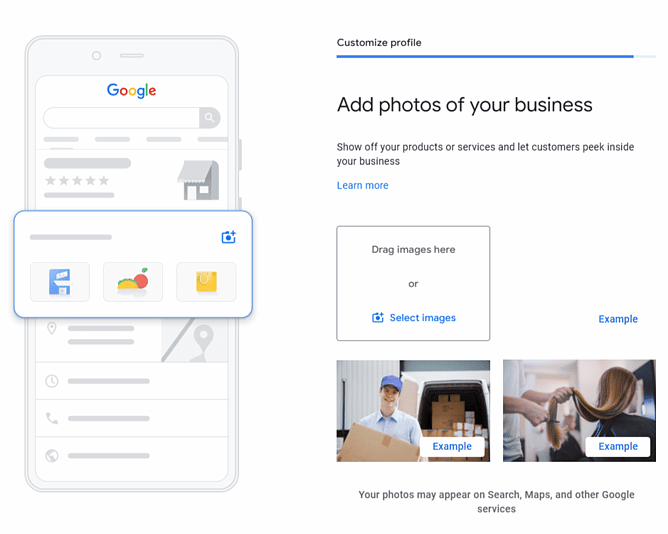
13. Add photos of your business
Adding photos is a great way to show off your business, its products / services, and your team.
For these photos to look their best they should be 720 x 720 pixels and between 10 KB and 5 MB in size. Having a square image allows your photos to work in all the various places that are likely to be shown throughout Google.
Here are what Google recommends as a minimum:
3 exterior photos
3 interior photos
3 photos at work
3 team photos
Based on your industry you should also include as a minimum:
Restaurants / Cafes etc.
3 photos of food or drink served
Hotels / Motels
1 of each common area (e.g. spa, gym or breakfast room)
3 of your most popular guest rooms
Retail
3 product photos
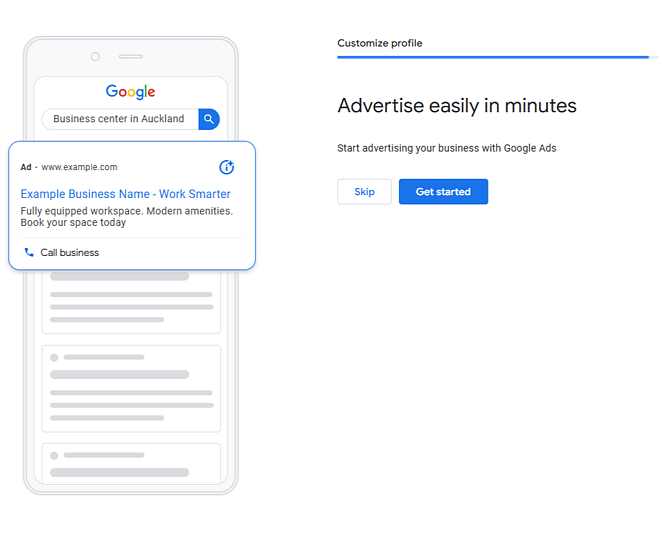
14. Advertise easily in minutes (optional)
If you want to advertise your business on Google you can set that up here. Follow the steps to get started with your Google Ads account.
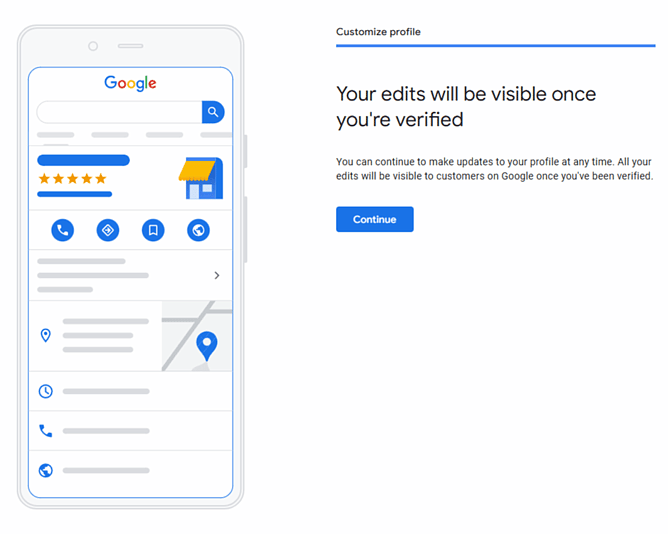
15. Your edits will be visible once you’re verified
Congratulations! Your Google Business Profile is now live.
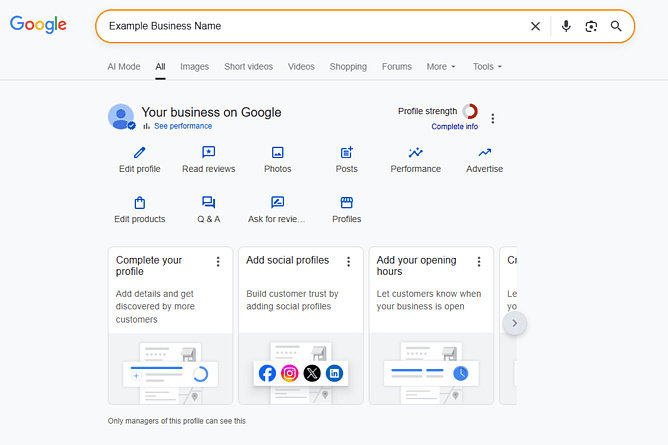
16. Google Business Profile Manager
Once your Google Business Profile is live you will want to go in your GBP manager and add a few more details to help you stand out from the average business profile.
Social Media Profiles
If you are on any of the major social media platforms you can build customer trust by sharing your social profiles on GBP. These will appear at the bottom of your GBP in search results.
Products
You can add your businesses products to your Google Business Profile from the manager. Click on the ‘Edit products’ option then click ‘Add product’ at the top or on an existing product to edit it.
When adding a product you must include a name, custom category, and photo. Optionally, you can include a price, description and product landing page URL.
Bookings / Appointments
In your GBP manager click ‘Bookings’ or ‘Appointments’ and add a link to your website's booking page. This link allows your customers to save time.
Ongoing optimisations
You will want to continue managing your profile to keep it up-to-date and relevant as your business grows. You can also request reviews, answering customer questions and add posts with updates, offers and events.